Software Development: Crunch

Nearly everyone in their working life will experience at some point a very tight deadline, significantly increased pressure to complete a specific task, and/or an insanely amount of extra hours that are expected of you to do. In the software industry (could also be used in other industries not too sure) this is referred to as “crunch“. There are many articles out there about crunch, especially in the video game industry. It is a time where you rarely see your family and friends, you eat and drink way too much junk food, your regular exercise regime is thrown completely out the window, and you may even dream about the code you had written (and not in a good way).

Currently during my software engineering career I have only ever experienced this crunch period twice. I wouldn’t consider the first time really crunch though. I did have to work towards a really tight deadline, longer hours, but it was only for a very short time. The second crunch I experienced was recently and it was for a longer period with an insanely tight deadline, a significant amount of work, and very long hours both during the normal work week and weekend. Personally I think crunch every so often, but not too frequently is a good thing. A little stress and hard work can be beneficial. In saying that though, working in an environment where you are in crunch mode every couple of weeks is probably not great for your well-being and highlights a potential problem with the operations of your organisation.

During my crunch I had to unfortunately stop attending my BJJ classes, working on my side projects, playing video games and even going out with friends and having a couple of beers. After my crunch period ended, I was exhausted but I made a commitment to myself to go back to my BJJ classes and attend my usual social gatherings at the minimum. With the software engineers that I worked with during this crunch period, I asked them how did they cope with all the stress, what techniques they used to mitigate feeling like garbage, and do they have any tips or tricks to make crunch not feel like a massive drain? All of them essentially came back with the same or similar responses:

  1. Breathe and take everything one step at a time:
    • Don’t panic as panicking will only make things worse.
    • Rushing or not paying attention to what you are doing will only cause you to make more mistakes and then cause you to panic even more.
  2. Switch off after your day is done:
    • You most likely won’t work for 24 hours so when you are done for the day and have worked close to 20 hours, clock off.
    • Focus on something you enjoy and do not bring your work home with you.
    • Be with your family and/or friends, or enjoy what little sleep you can get.
  3. Communicate and do it early:
    • There is nothing worse than needing help and not asking for it, you will only then fall further behind, rush and make mistakes and/or panic.
    • Others may be able to help you solve the problem faster and you will less likely panic if you know that others are here to help.

Along with all of these handy little tips and tricks I remembered some of the useful information that was presented in “The Clean Coder: A Code of Conduct for Professional Programmers” Chapter 11 – Pressure. That chapter essentially had the same information as what my colleagues had said to me.

Come the next crunch (which I know will happen at some point in the future) I will be better prepared mentally and will ensure that when I do get some time to myself\ I spend it making sure my body gets the rest it deserves or spend it with the people I enjoy being around. Keep my mind and body sane and happy 🙂

What I Enjoy The Most As A Software Engineer

The last two weeks or so I have been thinking about what I enjoy the most about being a software engineer. Do I love implementing new and exciting features for the customers to use? Absolutely. Do I enjoy designing and building new tools to make lives easier for the software engineers and testers where I work? Of course. Out of all the tasks that I perform on a daily basis, nothing beats fixing bugs.

The way you need to think is completely different in my opinion when you are fixing bugs compared to designing and implementing something from scratch or adding a new component. I treat this process much like a problem solving game where I assume the role of a detective trying to find out where the problem is happening, why it is happening and what is the best way to fix it so that in the future it won’t break again. With the use of logs, breakpoints and tests I ensure that the problem is fixed.

Why you may ask that I prefer to fix bugs over performing other tasks? It is extremely challenging, rewarding and you need to pay even greater attention to what you are doing. It really is the ultimate problem solving challenge in some ways. Your absolute attention to detail and focus is imperative and the amazing feeling you get when you successfully fix the bug is satisfying.

In the future will I still love fixing bugs over other tasks? I don’t really know. Most likely though I would say yes. I have always enjoyed a challenge, the problem solving game and that feeling you get when you succeed. Only time will tell, but right now any time I look at the Kanban boards or have issues assigned to me and it is a bug I get excited no matter how small or large the problem may be.

Goodbye 2017, Hello 2018

2017 I bid you farewell, and I welcome 2018 with open arms.

Overall 2017 was a great year for me, I started a number of things such as Brazilian Jiu-Jitsu and this very blog site. But with having done everything there was still a couple of things that I would have liked to have done such as release my app to the Windows Store, read a couple of more books and learn some new technologies that are not directly related to my work.

So now that 2018 has rolled in I am going to start making quarterly goals with mini goals in those quarters. With these quarterly goals I am hoping it will allow me to focus, reach some more milestones and achieve everything that I want to in 2018. If I was to give 2017 a label, it would be the year that I started many things. With 2018 I want it to be the year that I not only start new things but continue and finish a number of other things.

Right now I am in the process of thinking about and starting to write my quarterly goals. The very first item I put on that list was to release the alpha version of my artificial intelligence app to the Windows Store around April, some more information about the app currently can be found here. I also have picked out the first book I am going to read for 2018, Astrophysics for People in a Hurry; more information about the purchasing the book can be found here.

Let the 2018 adventure begin 🙂

Intrusive and Abusive Website Ads

Many consider this to be a controversial topic and there are generally only two camps that most people fall into. There is the “content creators live off the ad revenue they receive and the ads are not that bad” and then there is the “ads are ruining my browsing experience, so they are going to have to go when I browse“.

My position on the ads that are shown on websites has changed over the years. At first I was extremely annoyed by them (no matter the type of ad) so when the various ad blocking extensions arrived for Google Chrome I jumped right on them. Later on I took the position where the ads were not too annoying so I did not use any ad blocker. Now I have come back into the camp where ads on sites are just plain intrusive, in your face and annoying, that ruin your browsing and content consumption experience. If I was a major content provider I would make sure that the ads that I was offering were non-intrusive.

The type of ads that I don’t mind are the ones that sit in the background, don’t play any audio or video, and absolutely do not change the way that the website is presented; YouTube ads obviously are a different story and because I subscribe to YouTube Red I don’t see YouTube ads. What I found while not using an ad blocker extension recently was that there are more and more ads being shown on the various sites that I visit that completely rearrange the website’s content and either have intrusive audio playing or banners popping up. The worst experience that I have had was on mobile where the page’s content would load and then all the ads would load which rearranges the content or there is a pop up that has a difficult close button to press.

If content creators were so concerned about the ad blockers being used then maybe the ads that they show should not be so intrusive. A good example of intrusive website ads from a couple of weeks ago was on the video gaming site IGN and there was a promotion running. Not only was the home page of the site littered with ads for the promotion (banners on the top and both sides), but a large pop up ad was shown that played a video with muted audio. If you did close the pop up and started scrolling a small banner would follow that detailed the same promotion. This situation right there is intrusive and in my opinion should not be allowed. It ruined my browsing experience, slowed the site down, and also made actually viewing the content much more difficult. With the ad blocker on the page loaded significantly faster, there was no banner ads and the annoying pop up ad was gone.

As long as these types of practices for ads being displayed on websites continue then people are going to use ad blockers. I am fine with the top and side banners displaying the ads as it did not take away from the content itself and they did not ruin the experience. Having an ad pop up play a muted video and then have a banner ad follow you as you scrolled through the page is not consumer friendly and intrusive. So for the foreseeable future if websites continue to provide these intrusive ads then I am going to continue to use block the ads. If a site however is providing consumer friendly ads then I will white list the site and allow the ads to be shown. What are your experiences with ads on certain sites? And do you use an ad blocker while you browse the Internet?

Java Deprecation Annotation

An annotation that is near and dear to my heart; as someone who constantly evolves their classes it is vital that if I cannot remove some old methods and/or fields at a single moment, I correctly identify that they should no longer be used and a new method or field should be used instead. I have also been seeing it more and more the last couple of days on the open source projects that I am viewing (which is strange as this is not the first time I am thinking about a certain concept and then it appears everywhere).

The reason why I really appreciate the @Deprecated and @deprecated Java annotations are because as your classes evolve you sometimes have to signal to the developers working on the project that “hey this should no longer be used, it has been superseded by another method and you should use that one instead”. Both these annotations do just that.

@Deprecated vs @deprecated

If you take a quick look at the annotations then you may not see the difference. But having a capital letter ‘D’ instead of a lower case letter ‘d’ is important.

The @Deprecated annotation is to let the compiler know to generate a warning whenever your program is using the class, method or field that has the annotation.

The @deprecated annotation is specifically used for the Javadoc and notifies to the developer to not use the class, method or field and use the appropriate superseded one.

Generally I use both. @Deprecated to actually deprecate the class, method or field and then the @deprecated annotation in a comment to highlight which superseded class, method or field to use instead, and also very importantly note why the class, method or field was deprecated.

I have seen plenty of times only @Deprecated is used with no information as to what to use instead, which is slightly frustrating. It is always worth spending a small amount of time to correctly document why something has been deprecated and what to use instead, it makes everything much easier for you and everyone else.

Using @Deprecated

It is very simple to use the annotation.

To deprecate a class:

@Deprecated
public class Person { ... }

To deprecate a method:

public class Person {
	...
	@Deprecated
	public String getName() { ... }
	...
}

To deprecate a field:

public class Person {
	....
	@Deprecated
	private String name;
	...
}

Using @deprecated

Just as important as deprecating a class, method or field I believe in documenting what to use instead and why the original class, method or field has become deprecated. This annotation is sometimes missed by many developers from the open source projects that I have looked at.

To document a deprecated class, method or field:

/**
 * @deprecated
 * Replaced by {@link #Entity}
 * No longer valid as a Person objects are replaced by Entity objects.
 */
@Deprecated
public class Person { ... }

Official Documentation

For more information about the two annotations then take a look at the official Oracle documentation, here.

BJJ: A Physical and Mental Workout

I have been doing Brazilian Jiu-Jitsu for nearly a whole year now and I obtained my second stripe on my white belt last Friday; I was extremely happy that I managed to get it as well, but I know there is a long way to go. I want BJJ to continue to be a part of my life for a long time to come. It has been extremely beneficial for me both physically and mentally, plus my training partners are some of the nicest people I have ever met; the ego is checked out at the door at where I train.

When I wanted to start training BJJ there were plenty of people from family and friends who asked me “why do you want to do it?“. As a UFC fan I really appreciated the ground and submission game at play and listening to the Joe Rogan Experience podcast with the likes of Joe and Eddie talk about BJJ, how it changed and made their lives better; I thought why not give it a shot and what do I have to lose. While I was in high school I was fairly active so I was keeping fit, but as soon as I started university and began working full time, my physical activity essentially became non-existent. The only real exercise I ever did before starting BJJ was walking to and from work.

Starting BJJ was an eye opening experience. I knew I was out of shape, but I didn’t know I was that out of shape. My cardio was really bad. I had problems lasting more than a couple consecutive 5 minutes rolls at a time. So from the get go I knew BJJ was going to help get my cardio to where it should ideally be for someone my age. My cardio has gotten significantly better but personally it is not where I want it to be. I don’t gas as early but I still gas before the end of my session, something that I personally want to change in the coming year.

Learning all the various positions, submissions, etc. is extremely satisfying. Knowing that if I get into a street fight and it goes to the ground I can defend myself if they have a jacket (Gi) or they just have a shirt on (no Gi). I don’t need to physically hurt them either which is a bonus, I can painlessly subdue them while making sure I am safe. I don’t plan on getting into any fights anytime soon but if something does happen or I need to help someone, I am at least more prepared than before.

One thing that I really did not know was how much of a mental game BJJ is. Joe Rogan and others I kept hearing say that BJJ is like a physical chess match where you have to be multiple moves ahead of your opponent to beat them. I can for a fact verify this. If you clock off mentally for a split second there goes your full mount or your closed guard; you could even fall into someone’s triangle choke. You have to be on the ball and always thinking about your next move. I love this about BJJ. I have submitted people who are physically larger than me but I have also been submitted by people who are physically smaller than me. It really does feel like a physical chess match. At no point can you not be prepared.

Some days I feel really good because I didn’t get submitted or performed successfully a submission on someone, but other days I feel really bad. I either got submitted a crazy amount or I just did not have a good session. What I learn from this is that I need to continue to improve; I never take it too personally. I don’t dwell on the success or the failures for very long because I found that in BJJ your performance can change from roll to roll and session to session. Never take anything for granted because it can be taken from you so quickly. Your ego should never get the better of you and you should never feel bad when you get rolled by someone else.

Overall I feel that BJJ has made a positive impact on my life. Physically I have never felt better. Being a very competitive person it allows me to vent and release my competitive nature, otherwise I would have to do it while playing video games. Mentally it has allowed me to be both humbled when getting destroyed by people physically smaller than me and it has shown me that I have so much to learn (something that I really love doing). With every roll and session I learn new and little improvements that get added to your list of moves and positions.

After every BJJ session I come home physically exhausted and mentally drained, and I love every part of it.

Google Chrome VS Microsoft Edge On My Surface Book 2

Now that I have moved on from my Surface Pro 3 and have been using the new Surface Book 2 since it was released on a daily basis, I thought it would be a good time to do another comparison between the two browsers. If you want to check out my previous comparison of the two browsers on my Surface Pro 3, it can be found here. This time around I put Google Chrome up against Microsoft Edge on my Surface Book 2, and the results surprised me a little. If you want to read about my Surface Book 2 experience then click here.

Normally it is standard practice to install another web browser as soon as you install a version of Windows. Nearly everyone I know uses either Google Chrome or Mozilla Firefox (no kidding, I maybe know a handful of people who use Microsoft Edge and they all live in my house). No one even bothers to give Microsoft Edge a go and see if it does the job, which is a real shame. Whatever Microsoft has done with the Fall Creators Update and subsequent updates to the Microsoft Edge browser has made it extremely more stable, responsive and well, usable.

Here is just a short list of gripes I had with the Microsoft Edge browser that resulted me in having to install Google Chrome when I was using my Surface Pro 3:

  1. Lack of first, and third party extension support.
  2. Web pages failing to load and render.
  3. Tabs would become unresponsive too often.
  4. Constant crashes after not being able to recover web pages and tabs.

Now as you can see some of these issues are problems that make the browser not usable in one’s day to day browsing, I mean who would really want to properly render and load a web page without it crashing?

Once I setup my Surface Book 2 I did not install Google Chrome, I wanted to give Microsoft Edge a fair go. On paper Microsoft Edge has all the features a user would want and more. Since using Microsoft Edge I have noticed little to no issue with web pages failing to load and render, tabs are very rarely becoming unresponsive if ever and when they do become unresponsive they recover quickly and do not cause the browser to lock up and crash. Come to think of it I have not had Microsoft Edge crash on me once during my time using it on my Surface Book 2, and I have not had to force close it either.

Microsoft Edge has had no negative effects such as causing my Surface Book 2 to generate a large amount of heat or spin up a fan (my Surface Book 2 does not have a fan because I have the 13.5” i5 version), and the battery life has been extremely good. The only thing I wished was better with Microsoft Edge was the support for extensions, and from the extensions that are available most are buggy or do not function as well as their Google Chrome counterpart. With all this positivity I still wanted to see how Google Chrome performs on my Surface Book 2. After installing Chrome and using it for a couple of days, it showed me how far Microsoft has gone in catching up and passing Google when it comes to web browser optimization.

Google Chrome is known to be a resource hog and to Google’s credit it has been improving the resource management of the web browser with each subsequent release. Google Chrome chews up a large amount of your available RAM, unlike Microsoft Edge. But chewing up your available RAM is not the major problem here; I mean really using up available resources is not an issue (it is there to be used for a reason). The absolute worst part about Google Chrome on the Surface Book 2 is the drain on the battery. With Microsoft Edge I can get solid day’s worth of use on my Surface Book 2; Google Chrome on the other hand cannot give the same amount of battery life doing the same browsing. A solid day to me is 8 hours and using Microsoft Edge with other tools running easily passes this. Google Chrome and the same tools running can only last me around 6 hours. To some people 2 hours is not much, but that 2 hours can determine whether you leave your charger at home or now.

The issue where watching YouTube on Google Chrome would spin up my CPU fan of my Surface Pro 3 did not happen on my Surface Book 2. The primary reason for this is because my Surface Book 2 does not have a fan. What did happen though was that my device was a little warmer when watching YouTube on Google Chrome than on Microsoft Edge, it was not too hot to use on my lap but there was a noticeable difference.

Overall I think I’ll be sticking with Microsoft Edge completely now on my devices (on my Android device I have switch to Microsoft Edge and will most likely change my default browser back to Microsoft Edge from Google Chrome on my gaming PC), especially on my Surface Book 2. With the fixes that Microsoft have done to the Edge browser, if you have not given it a chance then try it out; it will surprise you I think at how well it performs compared to Google Chrome, and if you have a device you take on the go with you then it will probably drain less of your battery.

Well done Microsoft in really taking the time in optimizing your default browser, now if people only could shake the bad taste of Internet Explorer out of their mouths, they may give Edge a go.

Nokia 8 and Android Oreo

HMD Global was touting that the 2017 branded Android Nokia mobile phones will be receiving Android OS and security patches extremely quickly, as of December they have delivered on this. They also said that the mobile phones will also be one of the first to receive Android Oreo, before the end of 2017 I might add. This is a mighty claim, many have tried and failed with many manufacturers like HTC and Samsung holding out on the Android updates due to software issues with their launchers and skins. The Nokia mobile phones run a stripped down and pure Android OS with no bloatware or skins; this should make the update process much quicker and smoother.

Last night I got a little notification that allowed me to download and install Android Oreo on my Nokia 8. There were rumours that this version of Android was in testing and would be ready sometime in December (no indication whether it would be at the start, at the end or somewhere in between). I applaud HMD Global in pushing out the update extremely quickly. HMD Global is only one part of the update puzzle however. Your mobile phone provider also has to ensure that the update still works on their network and does not completely render your mobile phone useless on their network.

Telstra has been notoriously slow with pushing these updates to consumer’s mobile phones (even if you bought the mobile phone outright and not through Telstra). You can go to their forums and support channels to see a number of posts with people complaining that Telstra is blocking mobile phone updates. This time Telstra has pushed the update out fast. Have they changed their tune and business practices regarding mobile phone updates? Perhaps, but it is too hard to tell. One Android update coming to your handset in a timely manner does not excuse or disregard the numerous other delayed or blocked updates.

After the update was installed I noticed really only a couple of differences compared to the previous version of Android; there are probably more but these are the ones that stood out to me straight away:

  1. Notifications Bar – now with white icons and the expanded notifications bar has a white background with dark icons.
  2. Battery Percentage Indicator – other launchers and skins already had this but now Android comes with this handy little feature right out of the box.
  3. Nightlight – another feature that required either a third party app like Twilight or a custom launcher. The ability to change the blue hue on your display based on the time of day now comes standard with Android Oreo.
  4. Picture in Picture –  some apps have the ability and option to now work in “Picture in Picture” mode. You can easily browse the Internet while having YouTube running in a small window. Personally I have disabled this feature.
  5. Settings Cleaned – the entire Settings app has been cleaned up and made streamlined. There is no more confusion or ambiguity of where a particular setting sits. Well done Google.

Under the hood I imagine Google has made some improvements regarding battery life, optimization of the Android OS and other little improvements to make the Android experience that little bit more fluid, consistent and uniform. I use the Microsoft Launcher so I cannot comment on the default Google/Android launcher and if there has been any changes to that, but it most likely also has been improved like previous versions. So if you have a Nokia 8 (or potentially any other Nokia 2017 mobile phone) and you are on the Telstra mobile network then see if your device has an update.

Enjoy your new version of Android Oreo 😀

Software Development: Try Catch Finally

I have been meaning to write another software development blog post for a little while now, but had struggled to come up with something that is really worth writing about. After browsing StackOverflow and various programming forums and blogs I finally decided that it may be time to visit the “Try Catch Finally” code block. At work recently I have been using it more frequently due to the functionality that I am needing to implement (reading from files/streams, and writing to files/streams).

I’m not going to go into too much detail but just cover two of the areas where I feel plenty of developers either fall short or forget certain concepts about the “Try Catch Finally” block. One of these is hopefully blatantly obvious while the other may not be so clear.

Not a Logic Workflow

Your “Try Catch Finally” block should not be used as a means to control your logical flow of your application. I have read a number of times on StackOverflow where there have been contributions/answers that say something along the lines “Use the ‘Try Catch Finally’ instead of ‘If Else’ to control the flow of your application”. To other contributors credit these contributions/answers get down voted and commented heavily saying that this is wrong, not good practice and is not the reason to be using a “Try Catch Finally” block in the first place.

This thinking is wrong (using a “Try Catch Finally” for logical workflow), in that the “If Else” block is a means of controlling the logical flow of your application and the “Try Catch Finally” block is a means of handling thrown exceptions from your application. I always try to check for nulls, the correct format and instances of objects before using them (where ever possible), but I also always encase my methods with an appropriate “Try Catch Finally” block. Not only is this good programming practice but it helps ensure that your application is bullet proof, everything is logged and nothing unexpected happens.

For example if I am reading or writing to a file/stream there is always a chance that an IO exception will be thrown. By encasing my logic in the “Try Catch Finally” block I can correctly handle this exception, log it and then in the “finally” part close the file or stream if it is still open after the exception.

Remember this if you are to take something away from this post:

  1. “If Else” statements control your logical flow of your application.
  2. “Try Catch Finally” statements handle your exceptions thrown by your application.

Execution of Finally

This got me at first when I was learning about the “Try Catch Finally” code block. In nearly all circumstances the “finally” component will always get called, even if there is no exception thrown in your “try” component and you are returning. Originally I did not believe this but when I tried it out for myself, I was so surprised; I was not lied to by my lecturer, the textbook and the website I was referring to. If all three sources all said the same thing then I probably should have believed them I guess 😛

Here is an example where you may think that the “finally” component will not get called.

public String getStringValue(String value) {
	...
	try {
		if ("None".equals(value)) {
			return "Nothing";
		} else {
			return "Found at least one.";
		}
	} catch (Exception e) {
		logger.error(e.message());
		// Do more stuff.
	} finally {
		Console.WriteLine("I was still called.");
		// Do more stuff.
	}
	...
}

Why might you think that the “finally” component is not called? Well in the “try” component there is a return statement. If the method in the “try” does not throw an exception then we should drop out of this “getStringValue(int value)” method. However, as we have a “finally” statement, before we drop out of this method we will always write to the console “I was still called.”, and do any other stuff that is not shown in this code snippet.

To all the developers out there, if you use add a “finally” component in your “Try Catch” statement then be aware that it will always be called.

Surface Book 2 Impressions Part 3 of 3

If you haven’t already please check out my two previous posts about my impressions and experience with the Surface Book 2. The first post can be found here, and the second post can be found here. Enjoy 🙂

This is my third and final part of my Surface Book 2 impressions. The first post was an introduction to how and why I chose the Surface Book 2 as my primary laptop device over everything else on the market. The second post was about how I felt about the design and aesthetics. Now it comes down to one of the most important aspects when choosing a new device, what is the performance like and does it live up to expectations.

I have been using my Surface Book 2 while at home whenever I can. It has essentially become my daily driver when it comes to a PC; I have been avoiding using my gaming PC for most things like programming and word processing to ensure that I test the Surface Book 2 completely.

Display Detached

I have only detached the display a couple of times and it has been an okay experience. The detach process is fairly quick and there are no issues attaching the display back to the base. What I found was that using the display by itself (like a clipboard or a tablet) I would get 4 hours worth of battery easy (which I think is acceptable for its size and what you can really do without a keyboard). I didn’t really do too much with just the display; I watched videos and did some note taking with the Surface Pen and OneNote. In my day to day use I will most likely be keeping the Surface Book 2 as it came out of the box and like a traditional laptop.

Windows Hello 😉

The Surface Book 2 is equipped with Windows Hello, and is also the first Windows device I have ever had with this feature. Logging in to your Surface Book 2 is super easy and quick with Windows Hello and I highly recommend it; just look at your camera on the log in screen and it logs you in if it authenticates you. The entire Windows Hello experience is less than 3 seconds.

One thing I noticed was that when I first launched and configured my Surface Book 2 with Windows Hello, I had a beard so Windows Hello was recognising my face with a beard fine. Recently I shaved my beard off and it didn’t recognise me so I had to improve the recognition, not a major issue but something to consider if you change your facial hair frequently. To its credit though it recognised me with and without glasses with no issue.

Top Shelf Battery Life

The 13.5” i5 Surface Book 2 has an absolutely amazing battery. It has lasted me easily 10 hours before going to around 15% (shown by the battery indicator), and it could go for a little longer. The maximum amount of batter life I have gotten from the Surface Book 2 is around 11 hours (but closer to 12 hours really). Is it the 17 hours that Microsoft claims? Well no, but in saying that I have not been using the top of the line model and have not been watching videos only while offline with the display on a low brightness settings. The 10 hours that I have experienced is an average over several battery charge cycles with the lowest being 8 hours (closer to 9 but rounding down, this was when I was doing some taxing tasks) and the highest being 11 hours (close to 12 but I rounded down and this was with normal tasks).
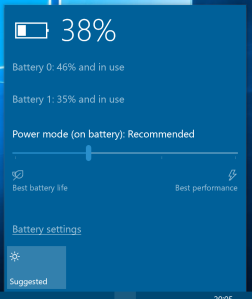
Surface Book 2 Battery IndicatorA nice feature is the battery display which shows two batteries. From what I can tell “Battery 0” is the battery in the display and “Battery 1” is the battery in the base of the Surface Book 2. Microsoft didn’t need to do this and could have easily only shown a single battery level. What this allows you to do is before you detach the display from the base you can easily check to see if you will have enough battery to use the Surface Book 2 as a tablet. Kudos for Microsoft for adding this feature for the Surface Book 2 through Windows 10. The complete harmony of the hardware and software is present here, very Apple like.

Initially I used the Surface Book 2 fairly lightly and did not do any programming or perform any heavy duty tasks; I mainly did some web browsing, video consumption and document editing. I let the battery completely drain (well around 5%) and then let it completely charge. Once I knew that the battery was charged all the way back up to 100% I started to push the Surface Book 2. To get a good average I did this battery drain cycle and charge a number of times.

Even when taxing the Surface Book 2 with Visual Studio and the Windows Mobile emulator plus a number of other apps running in the background the battery still impressed me. My Surface Pro 3 could get close to maybe 6 hours battery if I was lucky, here with the heavy duty use I was getting close to 9 hours. Can this device be your “leave your charger at home” type of laptop? It sure can, no problem. Personally I would have no issue leaving my Surface Book 2 charger at home and it would last me the entire normal work day. Rating the battery life for the time that I have been using the Surface Book 2 I would give it a 10/10.

Cool to Touch

One thing that is really good about the Surface Pro devices is that all the components are in the display, the keyboard that is attached is essentially just the keyboard and cover. Your lap then would never get hot if you were using the device on the go and not on a surface. This is a major problem with most traditional laptops in the market, but it is not a problem with the Surface Book 2.

I found that compared to other traditional laptops the Surface Book 2 runs extremely cool, I barely even noticed any heat on my lap while doing taxing tasks. I have used some laptops that are incredibly hot after a short period of time making them near impossible to place on your lap. Where you palms rest while you type and where your thighs are positioned under the base of the Surface Book 2 there is no heat generated at all. The only place where there is any heat felt at all is at the center back of the base, and that really isn’t too hot or uncomfortable at all. The heat distribution and management is fantastic.

San Fan (No Fan)

The Surface Book 2 that I have has no fan (i5 version). So unlike the insanely loud fan that would spin up on my Surface Pro 3 whenever I was doing anything taxing (or watching videos in Google Chrome for that matter), there is no noise being generated from my Surface Book 2. This is a welcome change and something that once you realise how quiet your device can be, you may miss it when you go to another device that has a loud fan. If you have an i7 version of the Surface Book 2, you unfortunately do have a fan and I imagine that when you do something that really pushes the device you will end up hearing the fan fairly easily.

No Lag or Compromise

With the combination of some pretty decent hardware and Windows 10, the Surface Book 2 has never lagged or slowed down on me, even when I was on less than 15% battery while doing programming tasks. I imagine that Microsoft has done some optimisations to the OS so that it runs well on the Surface Book 2 (like the battery indicator for example).

Other laptops and even to a lesser extent my Surface Pro 3 when the battery was getting close to being completely depleted the mouse would start to slightly lag and then some apps would take a little longer to respond. To date I have not experienced this with the Surface Book 2. Visual Studio is known to at times freeze/lag and then pick up again (even on my beefy gaming PC), but I have not had any issues with Visual Studio on my Surface Book 2, even when running the Windows Mobile emulator on around 20% battery.

My Final Thoughts

Microsoft has crafted and extremely durable, elegant and pleasant to use device in the Surface Book 2. From the premium unboxing experience to the outstanding battery life and no compromise performance even under heavy use, the Surface Book 2 can pretty much do whatever you need. For me, the Surface Book 2 met all the criteria for me to purchase and use as my primary laptop device, and it has exceeded my expectations from the unboxing to using it.

There really isn’t too much that I can fault the Surface Book 2 on. The keyboard is one of the best keyboards that I have ever used. The trackpad is the best trackpad that I have used. The display is one of the sharpest and crystal clear displays I have seen on a laptop and that is even after using the Surface Pro 3. The battery life has amazed me and can easily go a single work day with one charge and there is still battery life to spare. Windows 10 and every application that I have used on the Surface Book 2 has not lagged, frozen or crashed on me. If I had to fault the Surface Book 2 at all I would say that having the 3.5mm headphone port at the top right of the display when docked is a little annoying.

I would recommend the Surface Book 2 with no hesitation.